Showing posts with label Microsoft. Show all posts

Wednesday, March 24, 2010

Bing Celebrity Slideshows

I was just performing random searches on Bing when I discovered that some of the Instant Answers for celebrities featured a new feature called “Slideshow.” Like the name implies, Bing seems to collect images of whoever you searched for and compiles a Silverlight-powered slideshow with full screen capabilities. Here’s an example, inspired by my younger sister.

BingSlidehowDavidArchuleta1

BingSlidehowDavidArchuleta2

BingSlidehowDavidArchuleta3

BingSlidehowDavidArchuleta4

Here are a couple more I found to have a Bing Slideshow (courtesy of my sisters):

Tuesday, February 23, 2010

MSN.com continues home page facelift

If you park your homepage over at MSN, then you have been noticing some big changes to one of the most-visited websites in the world. In times when most of Microsoft is re-branding or re-building many of its products and strategies (think Windows 7, Windows Phone 7 Series, Bing, Zune HD, Windows Live Wave 4), they are not holding back over at the MSN team. Over the last couple of weeks, I have been noticing and making note of some big and not so big changes that they seem to be greatly debating internally (like background color, size of elements, text positioning, border structures, etc). For the last couple of days, probably for the ease of maintaining updated content for the Olympics, they only seem to be forwarding users to the older version of MSN.com. But a couple of weeks ago, they had almost 4 versions running:

  • http://www.msn.com/ (some people are/were directed to the old version, while some were “chosen” for a version of the new version) (that’s 2)
  • http://www.msn.com/preview.aspx (the permanently parked new version in progress, now without the beta sticker)  (that’s 1 more)
  • Another version I randomly get with some modifications to the new version design (blue background, inclusion and/or removal of an “app system”) (that’s total of 4)

I was going to go into detail about the different changes of each version, but I would first like to get an idea of what design they seem to be favoring. Right now, I have no clue about where the progression lies; in some browsers I get some versions, and on other computers I get others. I can’t tell where the preview has gone from point A to point B, so for now, just enjoy some really nice screenshots I compiled of the entire site, in its intact glory.

MSN Old Version
MSN.com, as it is for most users. Old design.


MSN Preview
MSN.com Preview, first version of the new design. Well, more like ‘1.2’ pictured here because I remember that the very first preview launched did not have that blue haze at the very stop, which was a very nice touch.


MSN Latest 
Newest MSN.com design, implementing a blue background, the new apps on the right, and very awkward, unnecessary, badly positioned, marketing for Bing in the search bar. Topped off with a GIANT ‘Web Search’ button. As if we don’t what a search bar looks like. I think if they removed the orange text from inside the bar, and completely removed the button and only left the Bing logo as it is, floating right, (which could act as a button itself), it would seem very sleek.


MSND 
Just thought I should add a screenshot of how they implemented the well-known “red ribbon of breaking news” within the new preview design.

Any thoughts?

Sunday, February 21, 2010

NVIDIA Graphics Update Creates Black Screen Lag

Here’s yet another fix for a tricky little problem that may affect some HP laptop users.

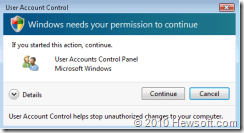
Error Summary: If you own an HP Pavilion DV6000 with an AMD Processor and Graphics by NVIDIA, Microsoft Windows Update may suggest an “Optional” update called ‘nVidia – Display – NVIDIA GeForce Go 6150’ that was released in March, 2009. You might be thinking, great, there’s something to improve the already issue-plagued graphics status of my DV6000, but no, far from it. Instead, after installing the update, you begin to notice lags before and after you receive one of those User Access Control windows.
uac

Error Applies To: Windows 7 (32 bit) [Confirmed], Windows Vista (32 bit) [Confirmed] on HP Pavilion DV6000Z Notebooks [Confirmed]

Error Status: Microsoft continues to publish the ‘Optional’ update via Windows Update.

Error Details/Scenario: While before the update, you would have a very, very short “black screen” prior the UAC window pop up, and again after clicking Continue, after the update, this black screen is greatly lengthened and very annoying. The black screen is not completely dark as if your monitor would be off, but instead you’re able to see some brightness because the backlight of the screen remains on. You might also experience this “black screen” lag when turning on and off your computer, maximizing and restoring some video windows, and between full-screen and regular-screen switches. The good thing is that you can restore your graphics card by re-instating the perfectly fine driver your had before.

  • NOTE: If you JUST installed the update via Windows Update and noticed this, you do not have to proceed further with the first part of the fix. To uninstall and revert to the previous graphics driver, you can use Windows System Restore to go back to a point and undo the Windows Update session that installed ‘nVidia – Display – NVIDIA GeForce Go 6150.’ Open System Restore by opening the Start menu, and searching for ‘System Restore.’  However, if it has been more than a week, proceed with all parts.

Pre-Fix Steps:

  1. Download and save ‘NVIDIA VGA Driver (7.15.10.9815 A)’ from HP to the Desktop. Do not run this installer until prompted to do so in the following fix. This driver is confirmed to work best with your computer and does not cause the “black screen” lag [File LINK].

Fix Steps:

Part One

  1. Open the Start menu.
    nvidia_black_screen01

  2. Find or search for Windows Update. Open it.
    nvidia_black_screen02

  3. Click on View update history to bring up a list of installed updates.
    nvidia_black_screen03

  4. Look for  ‘nVidia – Display – NVIDIA GeForce Go 6150.’
    nvidia_black_screen04
  5. Right-click the update and select View details.
    nvidia_black_screen05
  6. Make note of the ‘Installation date’ (it will be useful when looking for the update in Add/Remove Programs) and confirm details with the screenshot. Close the window.
    nvidia_black_screen06
  7. Back at your ‘Update history,’ click on ‘Installed Updates’ at the top of your window.
    nvidia_black_screen07
  8. Because the update is not listed here, on the left, click on ‘Uninstall a program’  to open Add/Remove Programs.
    nvidia_black_screen08
  9. Scroll down to the Ns and look for ‘NVIDIA Drivers.’ Confirm your installation date of this program with your installation date of  ‘nVidia – Display – NVIDIA GeForce Go 6150’ from Windows Update. If they match, you are looking at the same graphics driver and it is the one we want to remove.
    nvidia_black_screen09
  10. Click once on ‘NVIDIA Drivers’ so it only becomes highlighted.
    nvidia_black_screen10
  11. Select Uninstall/Change from the menu bar.
    nvidia_black_screen11
  12. A window named ‘Remove NVIDIA Components’ will appear giving you a selection of items to remove. Either select ‘Remove all NVIDIA drivers, including Display’ or ‘Remove only the following’ and check all of the boxes that match up with the screenshot. Click Remove.
    nvidia_black_screen12
  13. Your computer will blink and may display very weird screen resolution settings and/or turn off Windows Aero. Do not worry! This is normal. Restart the computer and return to these steps.
  14. Run the installer you downloaded to your Desktop from the HP site. Restart the computer and return to these steps.
  15. Everything should be back to normal now. If your resolution is still improperly configured, simply Right-click the Desktop and select ‘Screen resolution’ (in Windows 7) or by searching for ‘Screen resolution’ from the Start menu (in Windows Vista). Adjust appropriately. Also, you might want Aero (transparency) back, so fix that too.

Part Two

  1. If everything worked out great with either System Restore or with the steps in Part One, then Windows Update will return to prompting you about that ‘Optional’ update again. We need to block it from further installations. Open Windows Update and click on ‘1 optional update is available.’
    nvidia_black_screen13
  2. Find and confirm the update is available again.
    nvidia_black_screen14
  3. Right-click the update and select ‘Hide update.’ Feels good doesn’t it?
    nvidia_black_screen15
  4. Return to the previous window by clicking Back.
    nvidia_black_screen16
  5. Confirm that ‘Windows is up to date’ and the update no longer troubles you with its presence.
    nvidia_black_screen17

Congratulations! You are done. If you experienced any issues or you have updated information about what computers, systems, scenarios this issue applies to, feel free to leave a question or comment and I will personally assist you further.

Wednesday, January 7, 2009

Microsoft CES 2009 Windows Experience video

Microsoft CES 2009 Windows Experience (in high quality)


Video highlighting offerings from original equipment manufacturers featured during Steve Ballmer’s keynote address.


Enjoy the video.


- Albert

Tuesday, December 16, 2008

Microsoft issuing emergency browser fix

IE7Logo

This just in from MSNBC:

“REDMOND, Wash. - Microsoft Corp. is taking the unusual step of issuing an emergency fix for a security hole in its Internet Explorer software that has exposed millions of users to having their computers taken over by hackers.


The "zero-day" vulnerability, which came to light last week, allows criminals to take over victims' machines simply by steering them to infected Web sites; users don't have to download anything for their computers to get infected, which makes the flaw in Internet Explorer's programming code so dangerous. Internet Explorer is the world's most widely used Web browser.


Microsoft said it plans to ship a security update, rated "critical," for the browser on Wednesday. People with the Windows Update feature activated on their computers will get the patch automatically.” More


Because this flaw is extremely dangerous as it can steal stored passwords on your computer, it is absolutely critical that you install the update so you cannot be infected. The update is completely free of charge, as always provided by Microsoft. You will be able to download the patch tomorrow and I will have the link here as soon as it is available (the update is now available, look below). Again, it is very important you install this, especially if you use online banking, online gaming, online social networking, or any site which you have given any personal information to.


NAME AND INFO: MS08-078 Addresses a vulnerability in Internet Explorer (KB 960714)

INSTRUCTIONS:

For Windows XP: Perform Microsoft Update
For Windows Vista: Run the Windows Update tool.


Note: If you think you already have an infection, you can run Microsoft’s FREE Windows Malicious Software Removal Tool.


- Albert

Monday, December 8, 2008

Common introduces Microsoft’s clothing line: Softwear

“A Billion People Can't Be Wrong.

This is Softwear by Microsoft. A clothing line that taps the nostalgia of when PCs were just starting to change our lives. With retro logos, classic photos, and geek-chic iconography, these pieces showcase the DOS days of the software company that now connects over a billion people.”


That’s what visitors to the new “Softwear by Microsoft” site see on the Story page. There are a total of 8 shirt designs so far; 4 designed by Common and 4 “Classic” designs. Definitely falling under the “retro style” look, these shirts might just sell. I’m quite excited for a few of them, including “The Misdemeanor,” “The DOS Tangle,” “The Albuquerque,” and “The Reminisce.” Here’s a video just recently posted with Common beginning his “spokesman” title.


Common introduces Softwear by Microsoft – High Quality


Softwear will be in stores December 15th.


- Albert

Tuesday, December 2, 2008

Kiev Search? Microsoft’s new search brand?

LiveSide.net user “ma574ch33f117 performed a little interesting search over at Live Search and found something quite intriguing. In his comment, he states that he went to Live.com and searched “site:kumo.com” to see what results would come up with the domain. I went ahead and repeated that query and found other little details.


When you perform the search, you get a result titled “Kiev Search - Get to know Kiev Search” which contains a description:

“Get to know Kiev Search. Web. Search the web. cashback. Get money back when you shop at the online stores you know and trust. Images. Find the pictures that you've been looking for…”


image


Additionally, Live Search even provided a cashed version of the site, which looks a lot like a current Live Search site.

Current “Kiev Search” (kumo.com) cached site on Live.com servers

image


Current “Live Search” (similar site)

image


I don’t know…you be the judge. But, “Kiev” is such a random brand name. Kumo at least had some meaning behind it (which means either “cloud” or “spider” in Japanese, depending on which Kanji characters are used, via Mary-Jo Foley). I don’t honestly know what to think anymore. After the resurfacing possible Yahoo search deal, multiple rebranding possibilities, and now “Kiev,” I just hope some Softie knows what they’re doing.


- Albert

Monday, November 17, 2008

New Zune games added: Checkers, Sudoku, and Space Battle

Soon after watching the new Zune TV commercial, I decided to visit Zune.net to see if they had uploaded a high quality version of the ad. They didn’t, but did create a new official YouTube Zune channel. But anywho, as I was browsing the site, I noticed two main details. One, the site is undergoing a very nice re-design. And two, they’ve added more games! Best of all, they’re all still free! The new games, as the title implies, are Checkers, Sudoku, and Space Battle. I was getting a little bored with Hexic, so this is only awesome!


New Zune Games


Links:

I haven’t installed them myself, but I will soon. If anyone has any questions or problems, feel free to drop a comment.


- Albert

Zune 3.0 holiday TV advertising campaign launches

As promised by Cesar on the latest Zune Insider audio episode, the Zune holiday marketing has launched today on NBC’s Heroes. The campaign is supposed to concentrate on the unique features of Zune, rather than continue the vague messages of the previous campaigns. This ad is a good start to that goal. However, there needs to be more than just this. As much as this is only the first ad, it is a great sign for a big move to the direction that the Zune marketing team needs to take: selling the qualities and features that the Zune embodies. One thing to note though, and I say this based on feedback I’m getting from “regular” folks (those who do not follow tech companies and closely observe their products), is that some people may find the ad content itself really cool, but will never understand that it is a Zune feature and what exactly it does. Like for example, one friend tells me that she thought it was some new Zune feature that would allow people to communicate to each other in a webcam-like method. If you think about, that’s a pretty good reaction if you have no idea of what Zune is. Maybe, and I hate to say it like this, Zune needs more of the “instructional”-type marketing that Apple is really good at. The kind where maybe we can see the same thing we see on this ad, but with a narrator, or Common, explaining what happens when you click on each Mixview component. That way, people see cool stuff going on TV, a known face, and know what it is and what holds in store for them if they download it too. Okay, enough of me. Here is the ad. A way better quality version will replace this one as soon as I make it available. Better quality version now published here. Enjoy.


- Albert

Friday, October 31, 2008

Conan O’Brien, the Zune, and Al-Qaeda

Yep, you read the title right. A couple of nights ago, Conan O’Brien decided to give Al-Qaeda a call to see why they had endorsed John McCain for president. During the call, we learn that the iPod is “the Devil’s MP3 player.” See for yourself.


I love Conan’s show by the way. You should all watch. Weekday nights after Jay Leno on NBC at 12:30ish.


- Albert

Friday, October 17, 2008

Live Search: Search Suggestions

Live Search Logo Apologies for the lack of posting recently; still getting used to the college life :)

But anyway, for a while now I had been running into a feature not quite given much attention to. This could be because the feature comes and goes, and only until today did I notice that it seemed a bit more permanent. However, this might change within a few hours. I am talking about Live Search “Search Suggestions.”

Live Search Suggestions Drop Down


Originally I had noticed it when using my sister’s computer well more than a month ago. It obviously went a way for a while, or it shows up only to certain users (at the time, I would try it on my laptop and it wouldn’t show up, while it would on my sister’s). But as an active Live Search user, I have now seen it re-surface, and this time I think it might be here to stay. I think so because it is now well implemented into the Live Search options page, so if you can’t see the drop-down list, go there and enable them.

Live Search Suggestions Options


While Google has it on its home search page as well, Live.com currently seems to lack it. At the moment, the drop-down Search Suggestions only seem to appear when in a search results page. It will be interesting to see what Microsoft also decides to do with this tool to make it unique to that of other search engines, including Google and Ask.


- Albert

Thursday, September 18, 2008

I’m a PC: Not Alone

So the “actual” ads are finally here. So far three have been made available to the public with many more to come.

#3: Not Alone

- Albert

I’m a PC: Stereotype

So the “actual” ads are finally here. So far three have been made available to the public with many more to come.

#2: Stereotype

- Albert

I’m a PC: Pride

So the “actual” ads are finally here. So far three have been made available to the public with many more to come.

#1: Pride


I think it’s a great and not “big guy picking on the little guy” way of portraying the real side of the PC: billions of people connected and enabled. Of course, some of them do have glasses too. Haha.

- Albert

Tuesday, September 16, 2008

Zune 3.0 now available for download; update guide

Okay, so after finally calming down after all the excitement, here it finally is: a full screenshot-powered run through of what is the magical experience of Zune 3.0 software. But first, a list of all the new amazing stuff in Zune 3.0 software and firmware:

  • Zune clock now lives! (The 3.0 firmware update includes a clock you can enable)
  • Has a "screen lock" (password feature to lock your Zune)
  • New "zune pad" options
  • Zune "pink cloud" now super charged! (you can notice it now!)
  • Installs two games on device update ("Hexic" and "Texas Hold'em")
  • Quicklist now called "now playing" (makes sense)
  • New Zune software backgrounds (most updated)
  • Improved UI media-navigation features
  • And of course "MixView" (but I haven't had a chance to use it because Zune.net is still not up and running as of my installation)
  • And much more we've all yet to discover...

Okay, so for all you folks out there needing a hand with the Zune 3.0 software upgrade installation, here's my guide.

1. Launch Zune software.

2. Click on the Settings link on the top right.

3. Under "Software" go to the General tab.
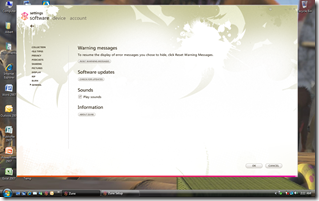
Zune0

4. Under "Software updates" check on "Check for updates." Once update is found, click on "Update Now."
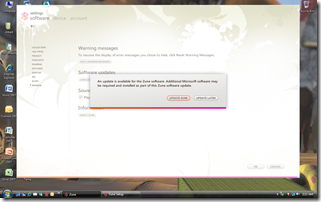
Zune1

5. It will begin preparing your computer for the installer.
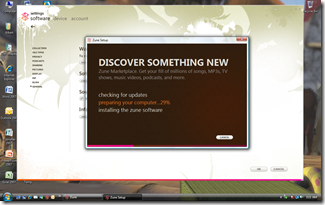
Zune2

Zune4

6. It will launch the installer. Accept the terms.
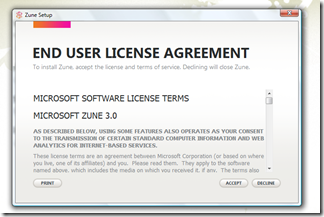
Zune5

7. Finally click on Install to begin the installation.
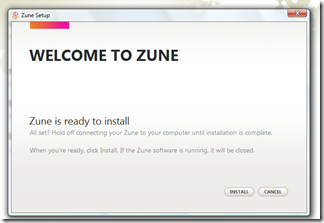
Zune6

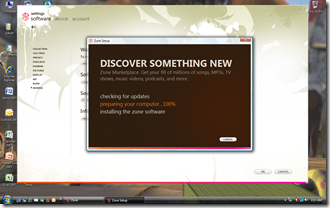
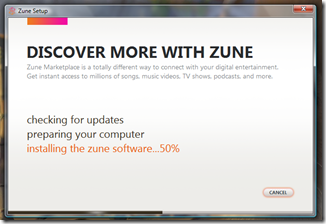
8. The update should jump to the final step, "installing the zune software."
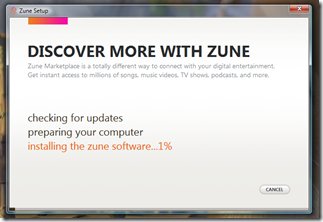
Zune7

Zune8

9. Close the installer once it is complete and launch the Zune software via the new icon on the desktop.
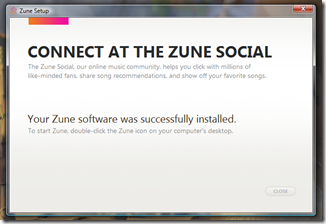
Zune9

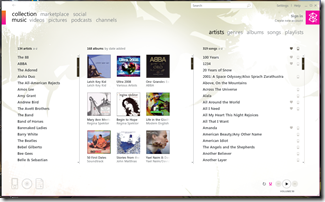
10. The new Zune 3.0 software loads.

Zune10

11. You should attempt to sign in to accept the "updated terms of service."
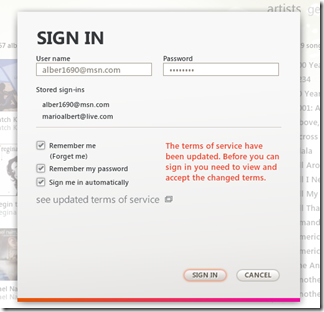
Zune11

12. Next, after you have signed in, it's time to update your Zune device. It can be the Zune 30, Zune 80, or Zune 4/8. Zunes 120 and 16 should already come preloaded with the new device firmware. Connect your Zune media player while Zune software is up and running. Windows will detect it as a new device.
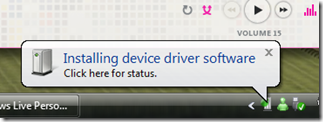
Zune12

13. You Zune software should detect the old firmware of the Zune media player and display the following screen. Click on Install. Make sure you leave the box checked to have games installed on your Zune.
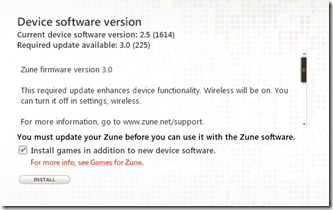
Zune13

14. The software will quickly download the updated Zune 3.0 firmware to your Zune and begin an updating process on your media player in which the screen will continue to turn on and off. Leave it plugged in. Do not press anything. This is all normal. You should see the following as this occurs.
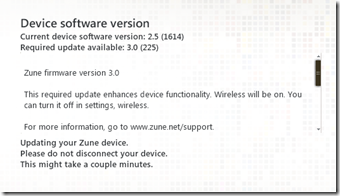
Zune14

15. You will receive the following success screen once your Zune media player is updated to firmware 3.0.
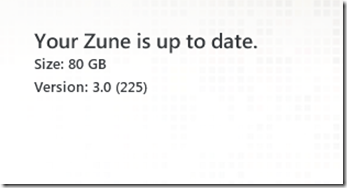
Zune15

16. And finally, you should be able to see your Zune. Yep, Albus after Dumbledore ;p
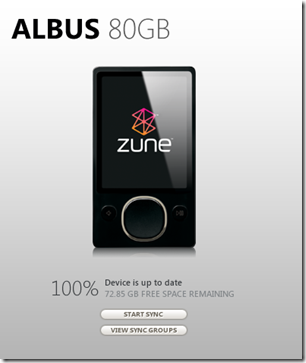
Zune16

Congratulations! You have just updated your Zune software and Zune media player to version and firmware 3.0. Welcome to the social!

- Albert